
User guide · 1
From sign-up to your first screen.
Four steps, about five minutes, no person on our side involved: ask for a phone, confirm your email, open the one-time link that shows your key, sign in and see the screen.
Step 1 · Sign up
Ask for your phone.
Open eriusphone.com/start, enter your email, choose Android and type your invite code.
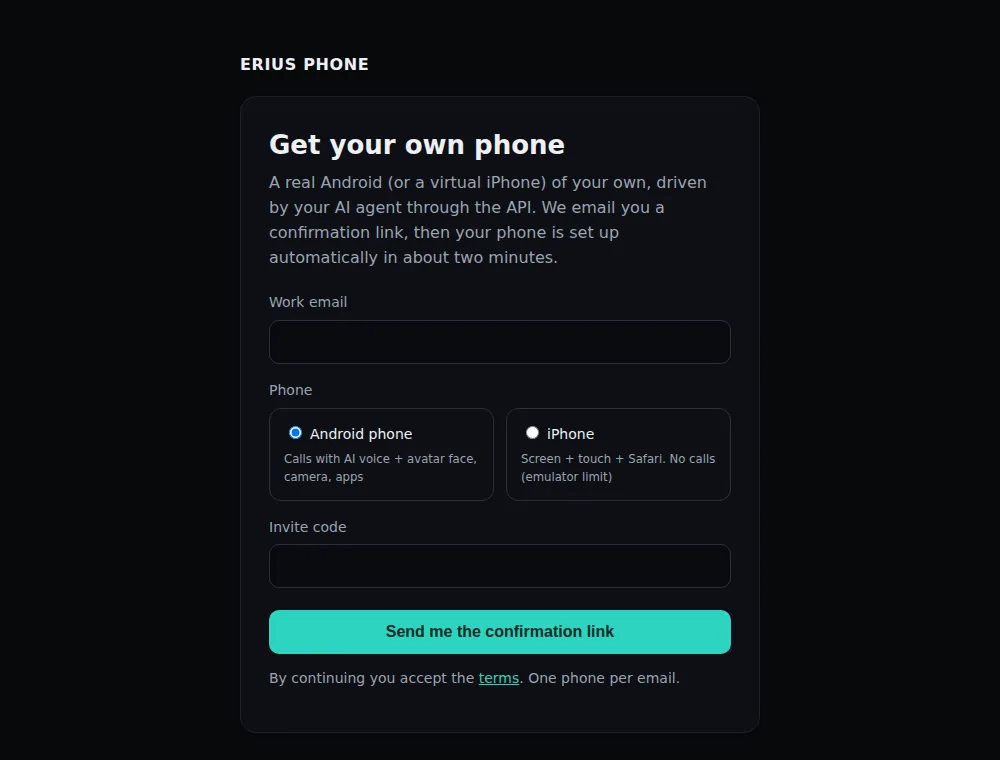
- Invite code. Sign-up is by invite during early access. No code yet? Ask for one with the early-access form on the home page.
- Android or iPhone. Android gives you a working phone now. iPhone is a waitlist today: no phone is created, we write to you when that changes.
- One phone per email. A second request with the same email does not create a second phone.
"Today's new phones are all taken." The number of new phones per day is limited. Your confirmation link stays valid for 24 hours, so try it again the next day.
Step 2 · Confirm
Confirm your email.
We send a confirmation link. It works once, for 24 hours.
- Open the email with the subject "Confirm your email for ERIUS PHONE".
- Press the button in it. A page opens with one more button, Confirm and set up my phone. Press that too.
- A progress page appears and refreshes by itself: email confirmed, phone being set up, key link emailed.
The page says "about two minutes". In our test run on 12 October 2026 the phone was ready 43 seconds after the confirmation.
Why two buttons? Mail scanners open links in emails before you do. The link alone changes nothing, so a scanner cannot use up your confirmation.
Step 3 · Your key
Open the one-time link and save the key.
A second email arrives, "Your ERIUS PHONE device is ready". It has your phone id and a button, Get my API key.
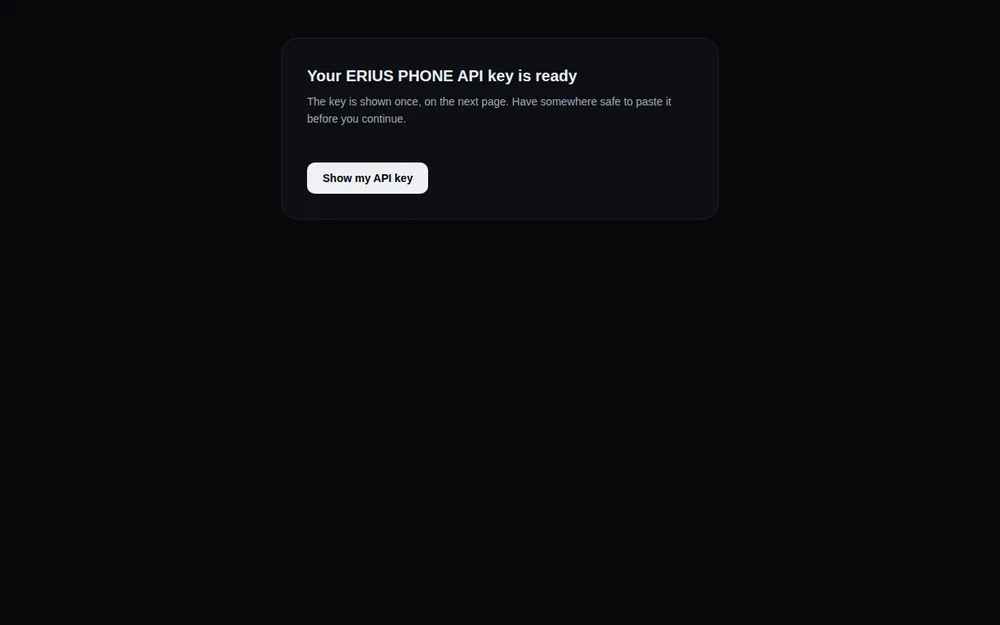
- Have a password manager or another safe place open.
- Press Show my API key. The key is displayed once. It starts with
sdk_. - Copy it and store it. Reloading the page does not show it again.
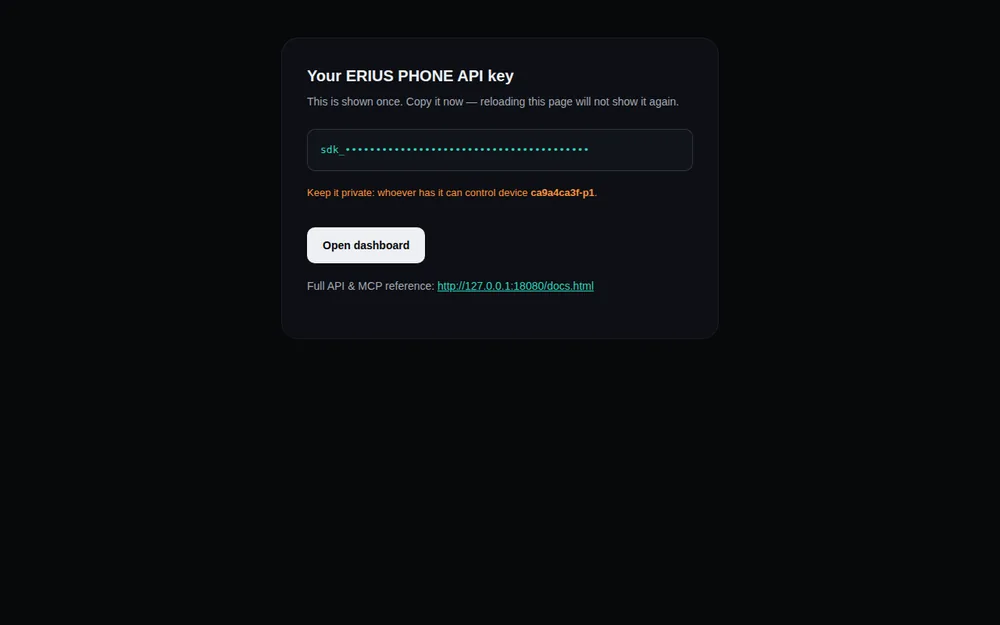
The key is the only credential. There is no password. Whoever has the key can use your phone, so treat it like one. If you lose it, see a lost key.
Step 4 · First screen
Sign in and see your phone.
Open the dashboard, paste the key, press Sign in. Your phone is on the Home page; Open live screen shows it.
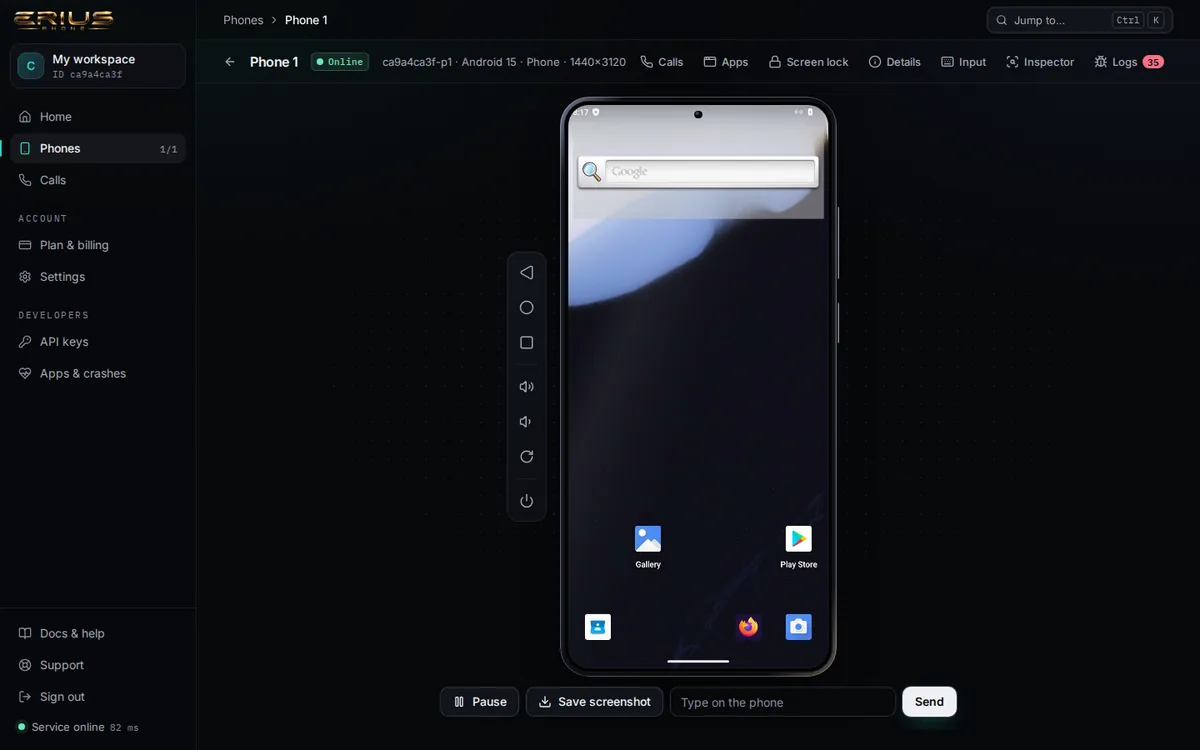
The phone is new: no account is signed in and only the system apps, Firefox and Google Play are on it.
The same, from a terminal
Your agent uses the same key.
Set the three variables once, then ask the API who you are.
export ERIUS_API="https://api.eriusphone.com"
export ERIUS_KEY="sdk_...your key..."
export ERIUS_DEVICE="your-phone-id"curl -s -H "X-API-Key: $ERIUS_KEY" $ERIUS_API/whoami{
"tenant": "ca9a4ca3f",
"keyId": "k2",
"devices": [
"ca9a4ca3f-p1"
]
}Take a screenshot. The last line of the output tells you what came back.
curl -s -H "X-API-Key: $ERIUS_KEY" -o screen.jpg \
  -w "%{http_code} %{content_type} %{size_download} bytes\n" \
"$ERIUS_API/device/$ERIUS_DEVICE/screenshot?format=jpeg&maxSide=1280"200 image/jpeg 24723 bytesTap the middle of the screen. Coordinates are in screen pixels; this phone is 1440 by 3120.
curl -s -X POST -H "X-API-Key: $ERIUS_KEY" -H "Content-Type: application/json" \
-d '{"x":720,"y":1560}' $ERIUS_API/device/$ERIUS_DEVICE/tap{
"ok": true,
"x": 720,
"y": 1560
}Next. Your phone covers apps, the lock screen, camera and microphone. Your agent's voice covers calls.
Stuck on something?
Open a ticket from your dashboard and we answer there. No key yet? Write to info@eriusphone.com.
Open a support ticket